
Understanding CSS Keyframes and Animation Timing
Learn how to build smooth animations from scratch. We'll walk through timing functions, keyframe percentages, and creating natural motion.
Intersection Observer and scroll events unlock powerful possibilities. Learn how to trigger animations at the right moment and keep them performant on all devices.

Scroll is how users navigate. It's not just passive movement down the page — it's a moment of engagement. When something happens as you scroll, it feels like the page is responding to you. That's powerful.
The trick is balance. Too many animations and the page feels chaotic. None at all and it feels static. You want animations that enhance the reading experience without pulling focus away from the actual content. This is where Intersection Observer becomes your best friend.
Intersection Observer is a browser API that watches when elements enter or leave the viewport. Instead of calculating scroll position manually with every pixel movement, you tell it "Hey, let me know when this element is visible." It's efficient and clean.
Here's what makes it different from scroll events: scroll fires constantly as the user moves. Intersection Observer fires only when visibility changes. This means way less work for the browser, which translates to smoother animations and better battery life on mobile.
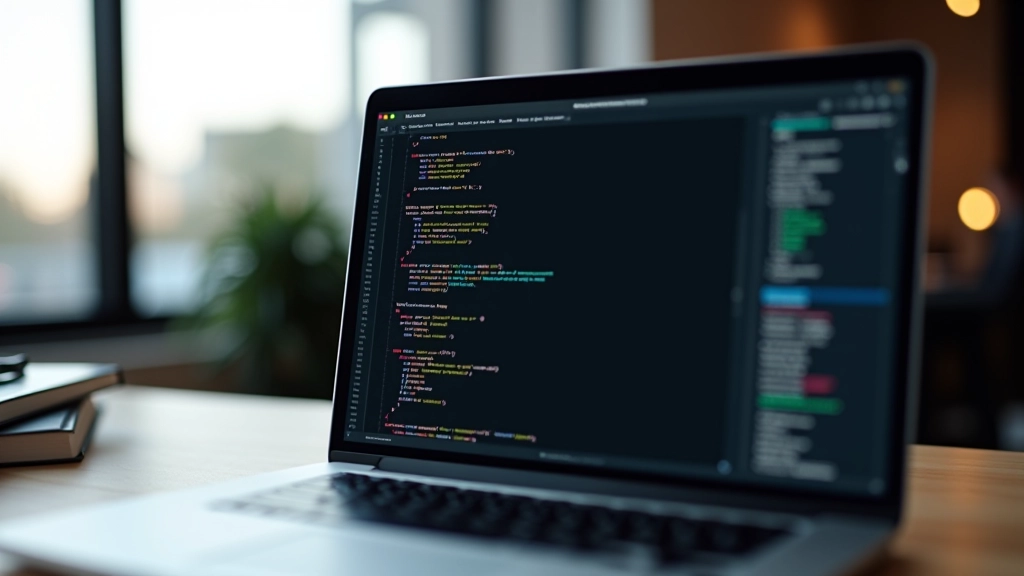
Let's be practical. You don't need complicated libraries. Vanilla JavaScript works fine. Create an Intersection Observer, pass it a callback function that adds a class when elements become visible, then use CSS animations on that class. That's it.
The workflow: HTML element with a data attribute Observer watches it Element enters viewport Callback fires Class gets added CSS animation plays. Simple chain of events. You can build fade-ins, slide animations, scale effects — whatever you want — just by changing the CSS.

Timing matters. You've got two main options with Intersection Observer: trigger when an element just enters the viewport, or trigger when it's halfway visible. Most of the time, you want the element to be at least 10-25% visible before the animation starts. This feels natural — not too early, not too late.
Animation duration is usually 0.6 to 1 second for scroll-triggered effects. Faster and it feels jarring. Slower and the user has already scrolled past by the time it finishes. You want the animation to complete while the element is still in focus.
Here's the reality: scroll animations can tank performance if you're not careful. The good news? It's avoidable. Use transform and opacity. These properties don't trigger layout recalculations. Everything else — width, height, margin, position — forces the browser to recalculate the entire page layout. Avoid those during animations.
Debounce if you're using scroll events directly. Better yet, stick with Intersection Observer and avoid scroll events altogether. Test on actual devices, not just your desktop. Mobile browsers are less forgiving. A smooth animation on a MacBook Pro might stutter on a mid-range Android phone.
Animation performance checklist:
Fade-in on scroll is the most reliable pattern. Simple, effective, doesn't distract. Elements start with opacity: 0, then fade to opacity: 1 as they enter. Users don't even notice it's happening — they just feel like the content is appearing naturally.
Slide-in works too, but be subtle. A small movement — maybe 20-30 pixels — feels polished. Big slides feel forced. Combine it with a fade for extra smoothness. The animation should complement the reading flow, not fight it.

Some people have motion sensitivity. Respect the prefers-reduced-motion setting. If someone's system is set to minimize animations, your scroll animations should either not run or run without motion — just fade in, no sliding. It's a small detail that shows you care about all users.
Test with keyboard navigation too. If someone's using a screen reader and jumping to content, animations shouldn't break the experience. The content should be accessible whether the animation plays or not. This isn't complicated — it's just being thoughtful about implementation.
Don't animate everything. A page where every element slides in as you scroll feels exhausting. Choose your moments. Animate key sections, hero images, call-to-action boxes. Leave most content static.
Don't use animations longer than 1.2 seconds on scroll-triggered effects. Don't animate properties that cause layout shifts. Don't forget to test performance. Don't ignore motion sensitivity settings. And don't assume what works on your computer works on everyone's phone.
The best scroll animations are the ones users barely notice. They just feel like the page is alive and responsive. That's the goal.
Note: Individual learning outcomes vary from person to person. Animation implementation depends on your project requirements, target audience, and device capabilities. Always test thoroughly across different browsers and devices before deploying to production.
Author
Editorial Team
Written by the Motion Flow Editorial Team, focused on practical CSS animation guidance and real-world micro-interaction implementation.
Learn how to build smooth animations from scratch. We'll walk through timing functions, keyframe percentages, and creating natural motion.
Transitions should feel responsive. Discover which properties animate smoothly and how to maintain 60fps across devices.

Subtle animations around buttons, forms, and feedback states make interfaces feel alive. We'll explore what works and why.