Micro-Interactions: The Details That Matter
Subtle animations around buttons, forms, and feedback states make interfaces feel responsive. We'll show you how to add polish without overwhelming the user.

Why Micro-Interactions Matter
You've probably noticed it without thinking about it. When you click a button and it changes color, or a form field gets a subtle glow when you focus on it — that's a micro-interaction. These tiny animations aren't decoration. They're communication. They tell users that something happened, that the interface heard them, that the system is responding.
Here's the thing: micro-interactions don't need to be complicated. A 200-millisecond transition on a hover state. A gentle scale animation when you tap a button. A brief color change in an input field. These details create the difference between an interface that feels clunky and one that feels alive.

The Four Core Types
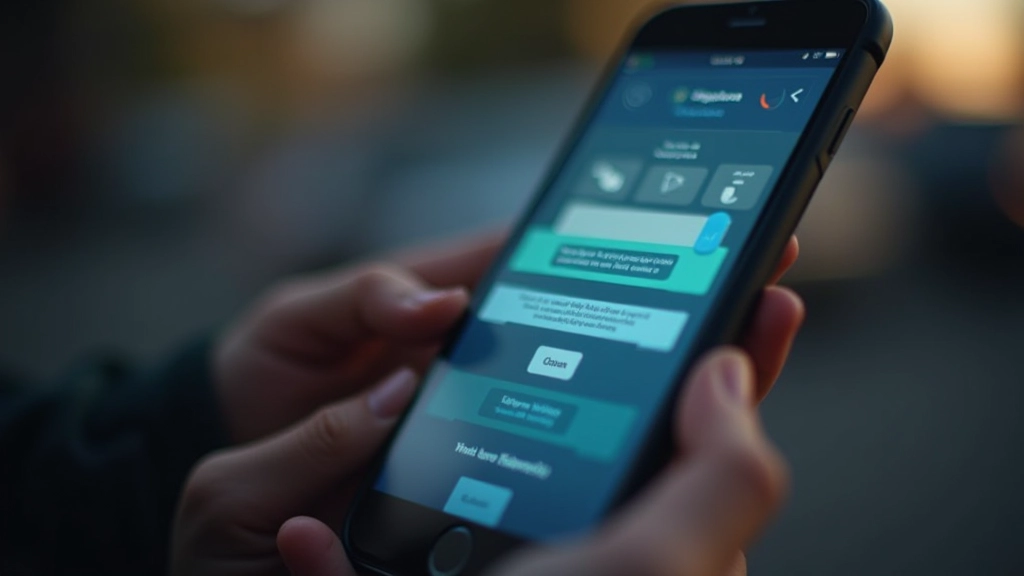
Micro-interactions typically fall into four categories, and knowing them helps you build more intentional designs. First, there's feedback — when the user does something, the interface responds. Click a button, it scales down slightly and changes color. That's feedback. It's immediate, it's clear, and it requires almost no extra code.
Key Types:
- Feedback: Direct response to user action (button press, form submission)
- System Status: Loading spinners, progress bars, status indicators
- Navigation: Smooth transitions between screens or states
- System Communication: Error messages, success confirmations, tooltips
The second type is system status. Your app's loading something. Show the user a spinner. Don't just freeze the screen. That spinner is a micro-interaction. It tells them the system hasn't crashed, it's working, they should wait. Navigation micro-interactions smooth out transitions between sections or pages. And finally, system communication — that's your error messages, success confirmations, and helpful tooltips. All of these can benefit from thoughtful animation.
Building Your First Micro-Interactions
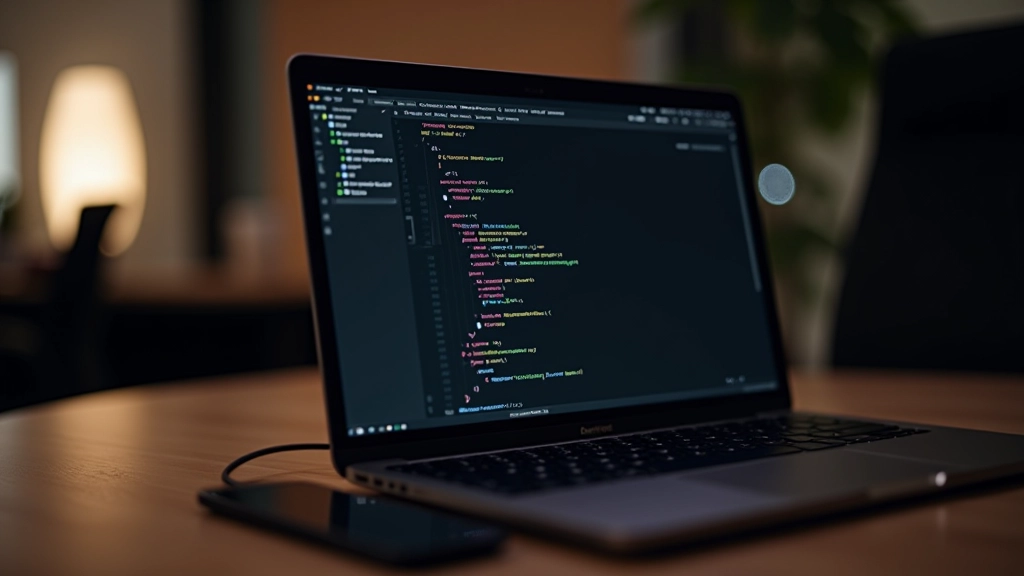
Let's get practical. The simplest micro-interaction you can build uses CSS transitions. You don't need JavaScript for most of what you'll do. A button that scales slightly on hover? That's three lines of CSS. Add a transition property, set your scale value, and you're done.
Start with the basics. Focus on buttons first. When someone hovers over a button, make it do something. Scale it up 5%, change the background color, add a shadow. Pick one or two changes, not five. The key is restraint. We're not trying to distract. We're trying to provide feedback. Most micro-interactions shouldn't last longer than 300 milliseconds. Anything slower feels sluggish. Anything faster feels jarring.
Define the Trigger
What action starts the animation? Hover, click, focus, or page load?
Choose the Animation
Scale, color change, shadow, opacity shift — pick 1-2 properties max.
Set the Timing
200-300ms is the sweet spot. Faster feels snappy, slower feels slow.
Real Examples You Can Use Today
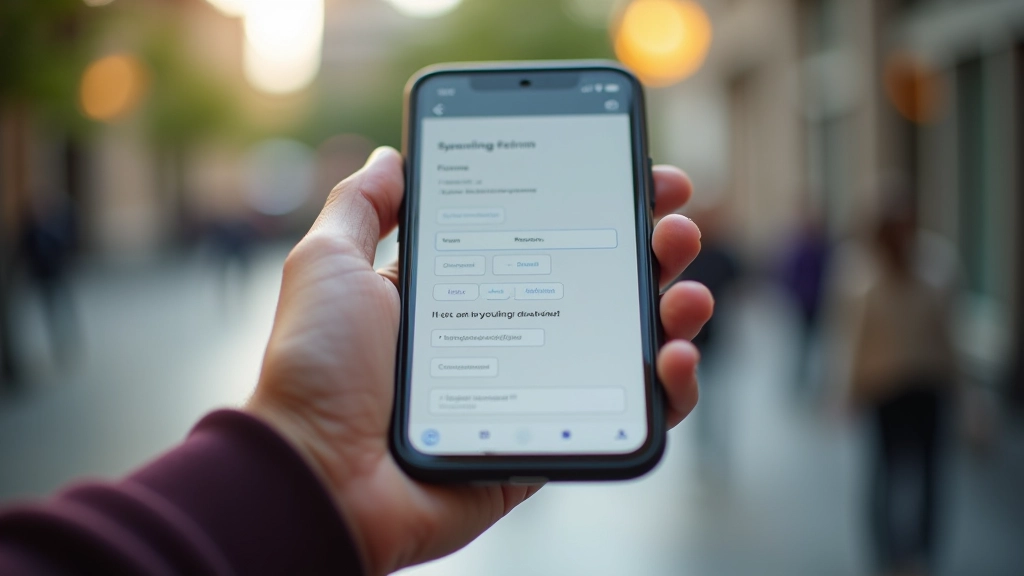
Forms are where micro-interactions shine. When someone clicks into a text input, give it a subtle glow. Maybe the border color changes, or a light background appears. That visual feedback tells them the field is active. When they submit the form, don't just navigate away. Show a brief success animation. A checkmark that appears and fades, or the button text changing to "Sent" for a moment.
Loading states need micro-interactions too. Instead of a static spinner, make it rotate smoothly. Add a subtle pulse to a progress bar. These animations don't add much code, but they make the waiting feel intentional, not broken. Users understand that something's happening. They're more patient when they see activity.
"The best micro-interactions are invisible. The user doesn't think about them, but they'd notice if they were gone. That's the goal."
Error messages benefit from animation too. Don't just pop text on the screen. Slide it in, or fade it in with a slight bounce. Make it clear something went wrong, but do it smoothly. The same applies to success messages. A quick animation that confirms the action completed. These moments matter because they're where users pay the most attention. Your interface is communicating. Make that communication clear and smooth.
Learning Note
Individual learning outcomes vary from person to person. The techniques covered here are starting points. Every project, every audience, and every design context is different. What works beautifully in one interface might feel wrong in another. Experiment, test with real users, and adjust based on feedback. The goal isn't to follow a formula — it's to understand the principles and apply them thoughtfully.
Polish Matters
Micro-interactions are the difference between good interfaces and great ones. They're not about flashiness. They're about clarity, feedback, and making users feel heard. A button that responds when you hover over it. A form field that glows when active. A spinner that rotates smoothly while you wait. These details accumulate. They build confidence in your interface. They make using it feel like a conversation, not a transaction.
You don't need to be an animator to add micro-interactions. CSS handles most of it. JavaScript can enhance the more complex ones. Start simple. Add a transition to a button. Animate a form input. Test how it feels. Does it communicate what you intended? Does it feel natural or overdone? That's how you develop the instinct for what works. Keep experimenting, keep refining, and your interfaces will feel noticeably more polished.

Motion Flow Editorial Team
Editorial Team
Written by the Motion Flow Editorial Team, focused on practical CSS animation guidance and real-world micro-interaction implementation.
Related Articles

Understanding CSS Keyframes and Animation Timing
Learn how to build smooth animations from scratch. We'll walk through timing functions, keyframes, and the fundamentals you need.
Building Smooth Transitions Without Performance Lag
Transitions should feel responsive. Discover which properties animate smoothly and which ones cause jank.

Scroll Animations That Engage Without Distracting
Intersection Observer and scroll events unlock powerful possibilities. Learn how to use them without overdoing it.